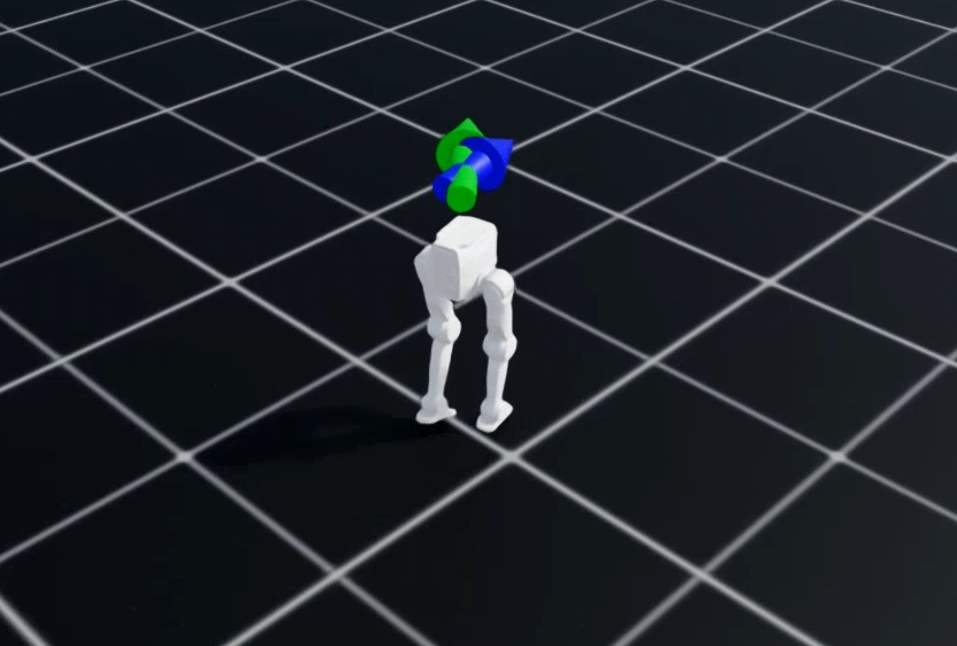
## 1 Task Overview The bipedal locomotion development workflow has four main stages: ```mermaid flowchart LR A["01 · Training"] --> B["02 · Play"] --> C["03 · Sim2Sim"] --> D["04 · Sim2Real"] classDef training fill:#e8f1ff,stroke:#4f83cc,color:#17365d,stroke-width:1.5px classDef play fill:#e8f6f1,stroke:#4a9b76,color:#174d38,stroke-width:1.5px classDef sim2sim fill:#fff4df,stroke:#d69b36,color:#68480d,stroke-width:1.5px classDef sim2real fill:#f2ecff,stroke:#8666c5,color:#38265f,stroke-width:1.5px class A training class B play class C sim2sim class D sim2real ``` This tutorial uses Isaac Lab 2.3.2 and Isaac Sim 5.1.0 for training. **Isaac Lab** is a unified, modular framework for robot learning. It streamlines common robotics research workflows, including reinforcement learning, learning from demonstration, and motion planning. Built on [NVIDIA Isaac Sim](https://docs.isaacsim.omniverse.nvidia.com/latest/index.html), it uses the simulator's latest capabilities to create realistic environments and run fast, efficient simulations. The framework is designed to be: - **Modular**: Customize and add environments, robots, and sensors. - **Flexible**: Adapt to the evolving needs of the community. - **Open**: Remain open source so the community can contribute and extend the framework. - **Comprehensive**: Provide a range of ready-to-use environments, sensors, and tasks. Key features include fast, accurate PhysX simulation, a tiled rendering API for vectorized rendering, domain randomization to improve robustness and adaptability, and support for cloud execution. To help you get started, this tutorial walks through a specific bipedal locomotion task: basic movement with TRON 2 in the WF and SF configurations, as shown below.Hardware and development environment requirements (the same requirements apply to training and deployment):
- GPU: NVIDIA GPU with at least 8 GB of VRAM. A GeForce RTX 3090 (24 GB) or better is recommended to reduce training time.
- CPU: At least six cores. An Intel Core i7-10700K, AMD Ryzen 5 5600X, or better is recommended.
- RAM: At least 16 GB.
- Storage: At least 30 GB of free space.
- Operating system: Ubuntu 22.04 LTS or later.
- Python: Version 3.10 or later.
- Network: Access to GitHub.
 ## 2 Environment Setup
The following steps install Isaac Sim from prebuilt binaries, followed by Isaac Lab from source.
### 2.1 Install Isaac Sim
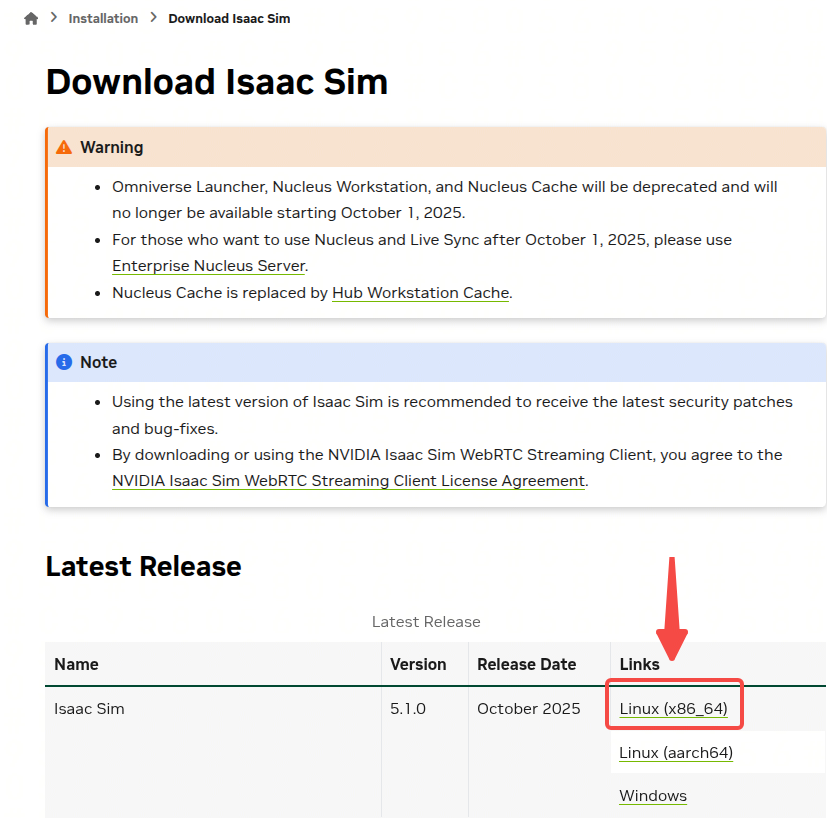
This setup uses the prebuilt binary installation for the Isaac Lab environment. Download the ZIP package from the following page:
[https://docs.isaacsim.omniverse.nvidia.com/5.1.0/installation/download.html]()
## 2 Environment Setup
The following steps install Isaac Sim from prebuilt binaries, followed by Isaac Lab from source.
### 2.1 Install Isaac Sim
This setup uses the prebuilt binary installation for the Isaac Lab environment. Download the ZIP package from the following page:
[https://docs.isaacsim.omniverse.nvidia.com/5.1.0/installation/download.html]()
Add the following environment variable definitions to `.bashrc`: ```bash # Isaac Sim root directory export ISAACSIM_PATH="${HOME}/isaacsim" # Isaac Sim python executable export ISAACSIM_PYTHON_EXE="${ISAACSIM_PATH}/python.sh" ``` ### 2.2 Verify the Isaac Sim Installation Run the following command to check that the simulator starts correctly: ```bash # note: you can pass the argument "--help" to see all arguments possible. ${ISAACSIM_PATH}/isaac-sim.sh ``` Run the following commands to check that the simulator can run from a standalone Python script: ```bash # checks that python path is set correctly ${ISAACSIM_PYTHON_EXE} -c "print('Isaac Sim configuration is now complete.')" # checks that Isaac Sim can be launched from python ${ISAACSIM_PYTHON_EXE} ${ISAACSIM_PATH}/standalone_examples/api/isaacsim.core.api/add_cubes.py ```Extract the downloaded ZIP file to your preferred directory.
This tutorial assumes that Isaac Sim is installed in
${HOME}/isaacsim.
If the simulator fails to start or crashes after you follow these steps, the configuration may be incorrect. For debugging and troubleshooting, see the Isaac Sim [documentation](https://docs.omniverse.nvidia.com/dev-guide/latest/linux-troubleshooting.html) and [Isaac Sim Forums](https://docs.isaacsim.omniverse.nvidia.com/latest/common/feedback.html). ### 2.3 Install Isaac Lab #### 2.3.1 Clone Isaac Lab ```bash git clone -b release/2.3.0 https://github.com/isaac-sim/IsaacLab.git ``` #### 2.3.2 Create a Symbolic Link ```bash # enter the cloned repository cd IsaacLab # create a symbolic link ln -s path_to_isaac_sim _isaac_sim # Replace path_to_isaac_sim with your local Isaac Sim installation path. # recommended: ln -s ~/isaacsim _isaac_sim ``` ### 2.4 Install Conda Follow the Conda installation instructions: [https://docs.conda.io/projects/conda/en/latest/user-guide/install/index.html]() After installing Conda, create a Conda environment: ```bash # Option 1: Default environment name 'env_isaaclab' ./isaaclab.sh --conda # or "./isaaclab.sh -c" # Option 2: Custom name ./isaaclab.sh --conda my_env # or "./isaaclab.sh -c my_env" # Activate the environment # Activate environment conda activate env_isaaclab # or "conda activate my_env" ``` ### 2.5 Install Python Dependencies #### 2.5.1 Install System Dependencies `build-essential` is an Ubuntu/Debian **meta-package** that installs the core compilation tools needed for C/C++ development. ```bash # these dependency are needed by robomimic which is not available on Windows sudo apt install cmake build-essential ``` #### 2.5.2 Install the Isaac Lab Python Packages ```bash ./isaaclab.sh --install # or "./isaaclab.sh -i" ``` By default, this command installs **all** learning frameworks: `rl_games`, `rsl_rl`, `sb3`, `skrl`, and `robomimic`. ### 2.6 Verify the Isaac Lab Installation ```bash # Option 1: Using the isaaclab.sh executable # note: this works for both the bundled python and the virtual environment ./isaaclab.sh -p scripts/tutorials/00_sim/create_empty.py # Option 2: Using python in your virtual environment python scripts/tutorials/00_sim/create_empty.py ``` These commands should launch the simulator and display a window with a black viewport. Press `Ctrl+C` in the terminal to exit the script.If you have used an earlier version of Isaac Sim, run the following command on the first launch after installation to remove all previous user data and cached variables:
${ISAACSIM_PATH}/isaac-sim.sh --reset-user
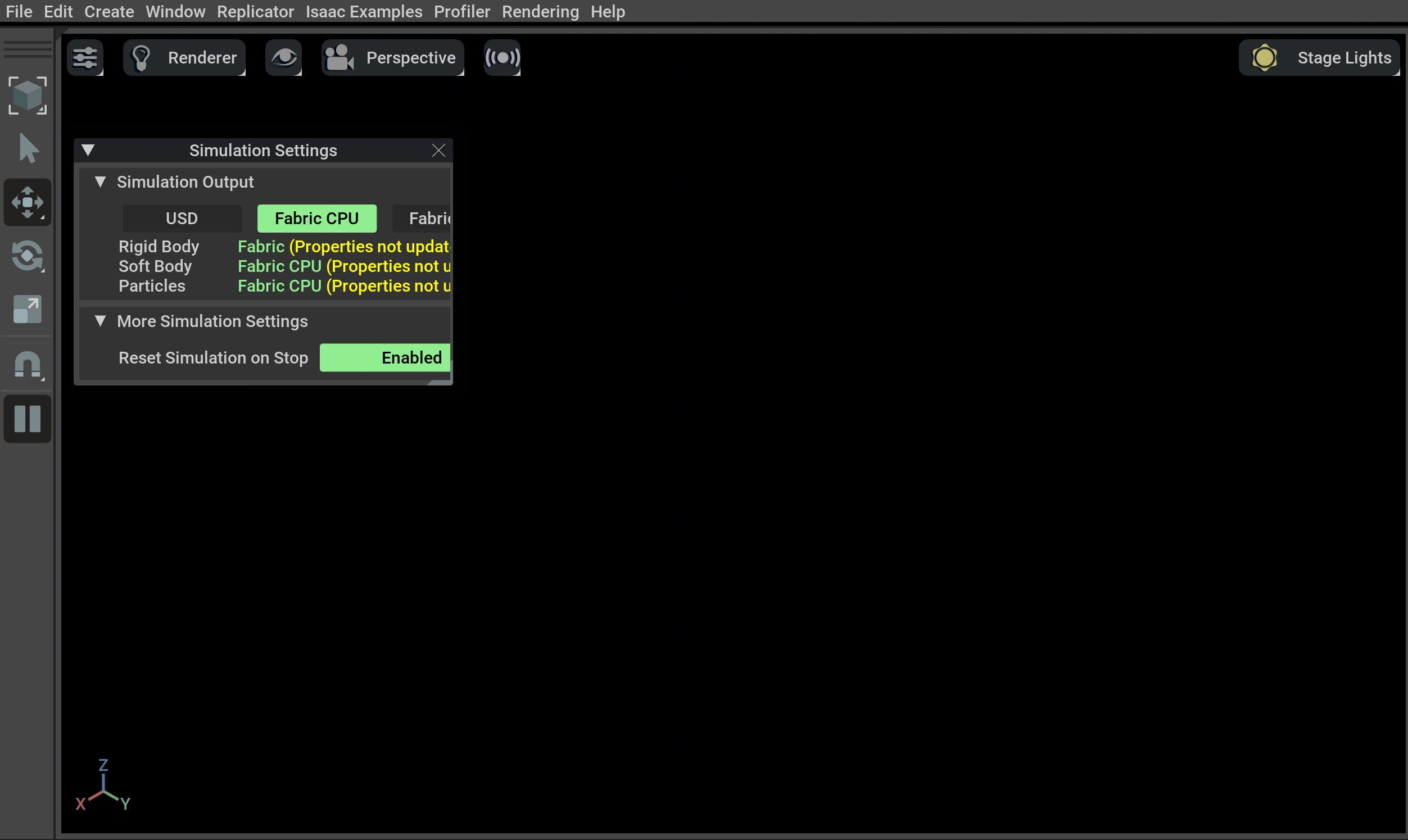 If this window appears, the installation is successful.
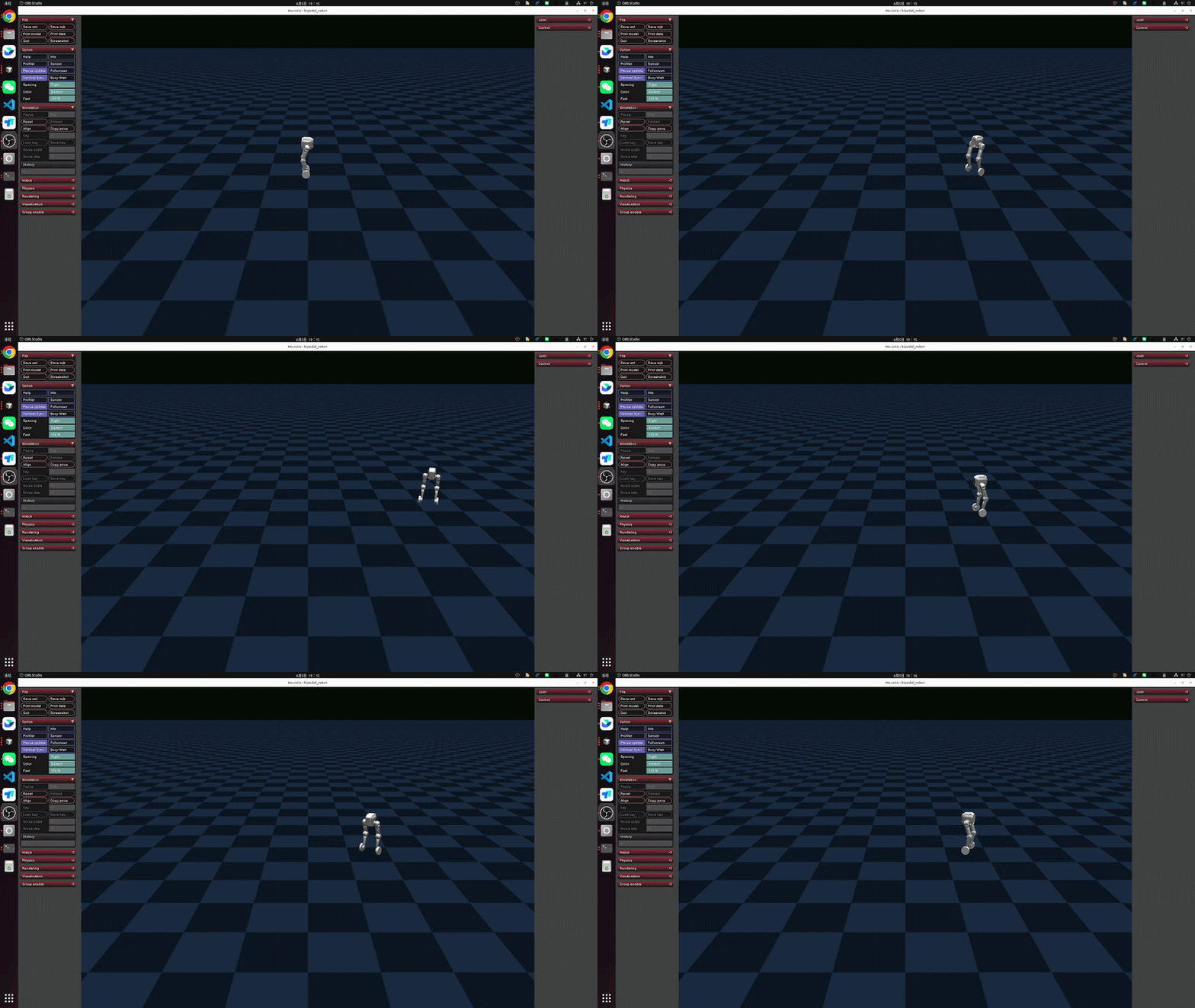
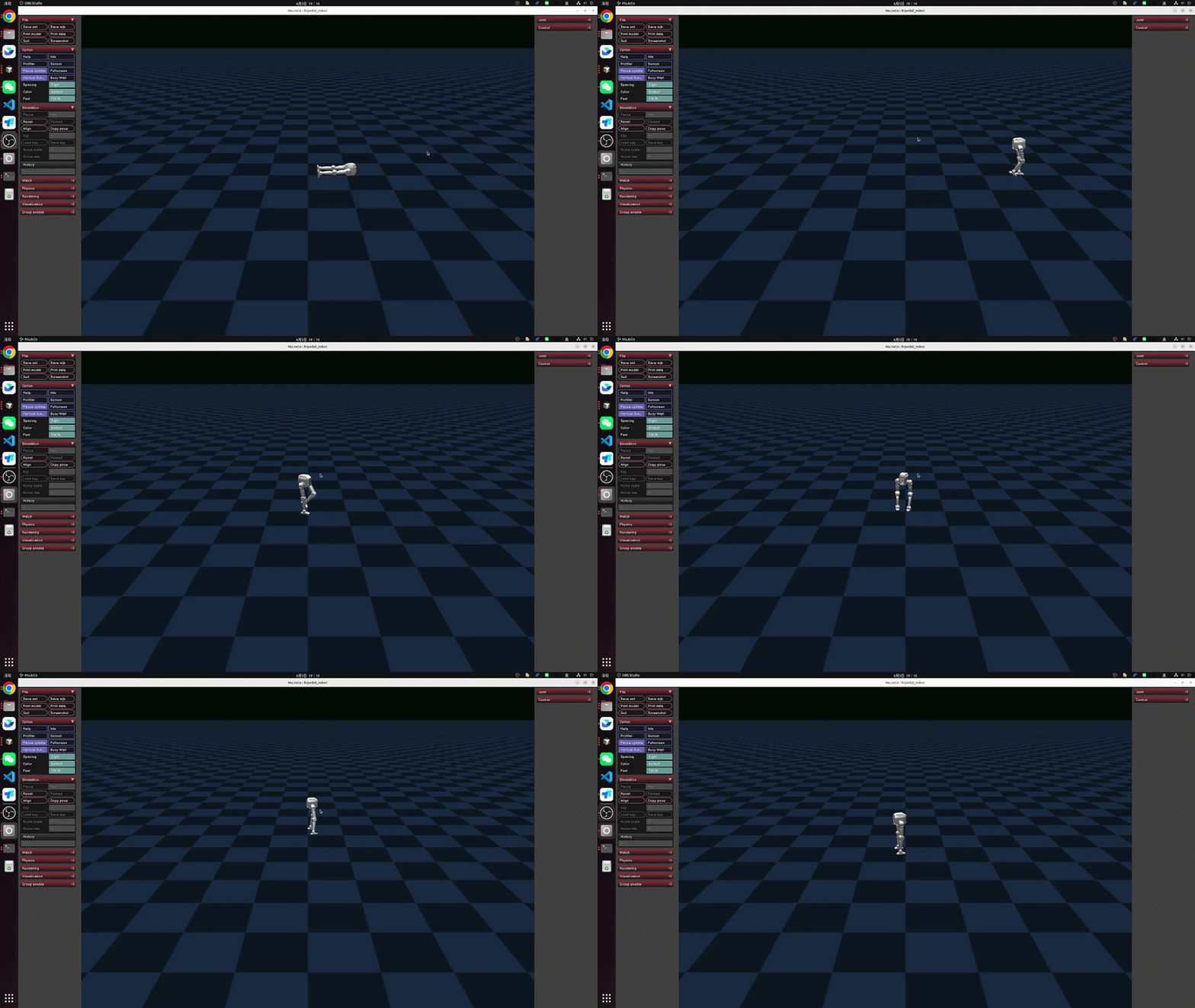
## 3 Get the Project Code ### 3.1 Clone the Repository Run the following command: ```bash git clone https://github.com/limx-tron2/tron2_rl_lab ``` ### 3.2 Install the Python Packages Enter the project directory: ```bash cd tron2_rl_lab ``` Activate the Conda environment: ```bash conda activate env_isaaclab ``` Install the packages: ```bash pip install -e rsl_rl pip install -e exts/bipedal_locomotion --no-build-isolation ``` ## 4 Train a Policy All commands in this section use the Sole Configuration (SF) as the example. ### 4.1 Training ```bash conda activate env_isaaclab python scripts/rsl_rl/train.py \ --task Isaac-Limx-SF-TRON2A-Blind-Flat-v0 \ --num_envs 4096 \ --headless ``` ### 4.2 Run the Trained Policy (Play) Run the following commands to play the trained policy. This also exports the ONNX model required for deployment. ```bash conda activate env_isaaclab python scripts/rsl_rl/play.py \ --task Isaac-Limx-SF-TRON2A-Blind-Flat-v0 \ --num_envs 1 ``` ## 5 Simulation and Real-Robot Deployment ### 5.1 Prepare the Environment - Create a Conda environment for Python deployment. Create a dedicated Conda environment, such as `tron2_deploy`, and specify the Python version: ```bash conda create --name tron2_deploy python=3.8 ``` - Activate the new environment: ```bash conda activate tron2_deploy ``` ### 5.2 Create a Workspace Follow these steps to create a workspace for RL deployment: - Open a Bash terminal. - Create a directory for the workspace. For example, create `limx_ws` in your home directory: ```bash mkdir -p ~/limx_ws ``` - Download the MuJoCo simulator: ```bash cd ~/limx_ws git clone --recurse-submodules https://github.com/limx-tron2/tron2_mujoco_sim ``` - Download the deployment implementation: ```bash cd ~/limx_ws git clone --recurse-submodules https://github.com/limx-tron2/tron2_rl_deploy_python ``` - Install the Low-Level Motion-Control SDK, if it is not already installed: - Linux x86_64 ```bash # Activate the tron2_deploy Conda environment conda activate tron2_deploy # Install limxsdk pip install tron2_rl_deploy_python/limxsdk-lowlevel/python3/amd64/limxsdk-*-py3-none-any.whl ``` - Linux aarch64 ```bash # Activate the tron2_deploy Conda environment conda activate tron2_deploy # Install limxsdk pip install tron2-rl-deploy-python/limxsdk-lowlevel/python3/aarch64/limxsdk-*-py3-none-any.whl ``` - Set the robot type. See the "View/Set the Robot Type" section to identify your robot type. If it has not been set, follow these steps: - Run `tree -L 1 tron2-mujoco-sim/robot-description/tron2` to list the available robot types: ```text limx@limx:~$ tree -L 1 tron2-mujoco-sim/robot-description/tron2 tron2-mujoco-sim/robot-description/pointfoot ├── SF_TRON2A └── WF_TRON2A ``` - Set the robot type using WF_TRON2A as an example. Replace it with your actual robot type: ```bash echo 'export ROBOT_TYPE=WF_TRON2A' >> ~/.bashrc && source ~/.bashrc ``` ### 5.3 Update the RL Model Using WF_TRON2A as the example robot type in your workspace: - The RL model and configuration files are located in `~/limx_ws/tron2-rl-deploy-python/controllers/model/WF_TRON2A`. The directory structure is shown below. Update or replace these files to match your training environment and results. ```bash tree ~/limx_ws/tron2-rl-deploy-python/controllers/model/WF_TRON2A/ . ├── params.yaml ├── policy.onnx └── encoder.onnx ``` ### 5.4 Deploy in Simulation - Open a Bash terminal and run the MuJoCo simulator: ```bash # Activate the tron2_deploy Conda environment conda activate tron2_deploy # Run the simulator cd ~/limx_ws python tron2-mujoco-sim/simulator.py ``` - Open a Bash terminal and run the control algorithm. If the robot has fallen, click `Reset` in the simulator's left sidebar after starting the motion controller. The robot should return to its initial state and start walking. ```bash # Activate the tron2_deploy Conda environment conda activate tron2_deploy # Run the control algorithm python tron2-rl-deploy-python/main.py ``` - Open a Bash terminal and run the virtual Remote Controller. During simulation, use the Left Joystick to move forward or backward and turn left or right. Use the Right Joystick to move sideways to the left or right. ```bash ./tron2-mujoco-sim/robot-joystick/robot-joystick ```If you see
ModuleNotFoundError: No module named 'isaacsim', make sure the virtual environment is active and that you have runsource _isaac_sim/setup_conda_env.sh.
 ### 5.5 Prepare for Real-Robot Deployment
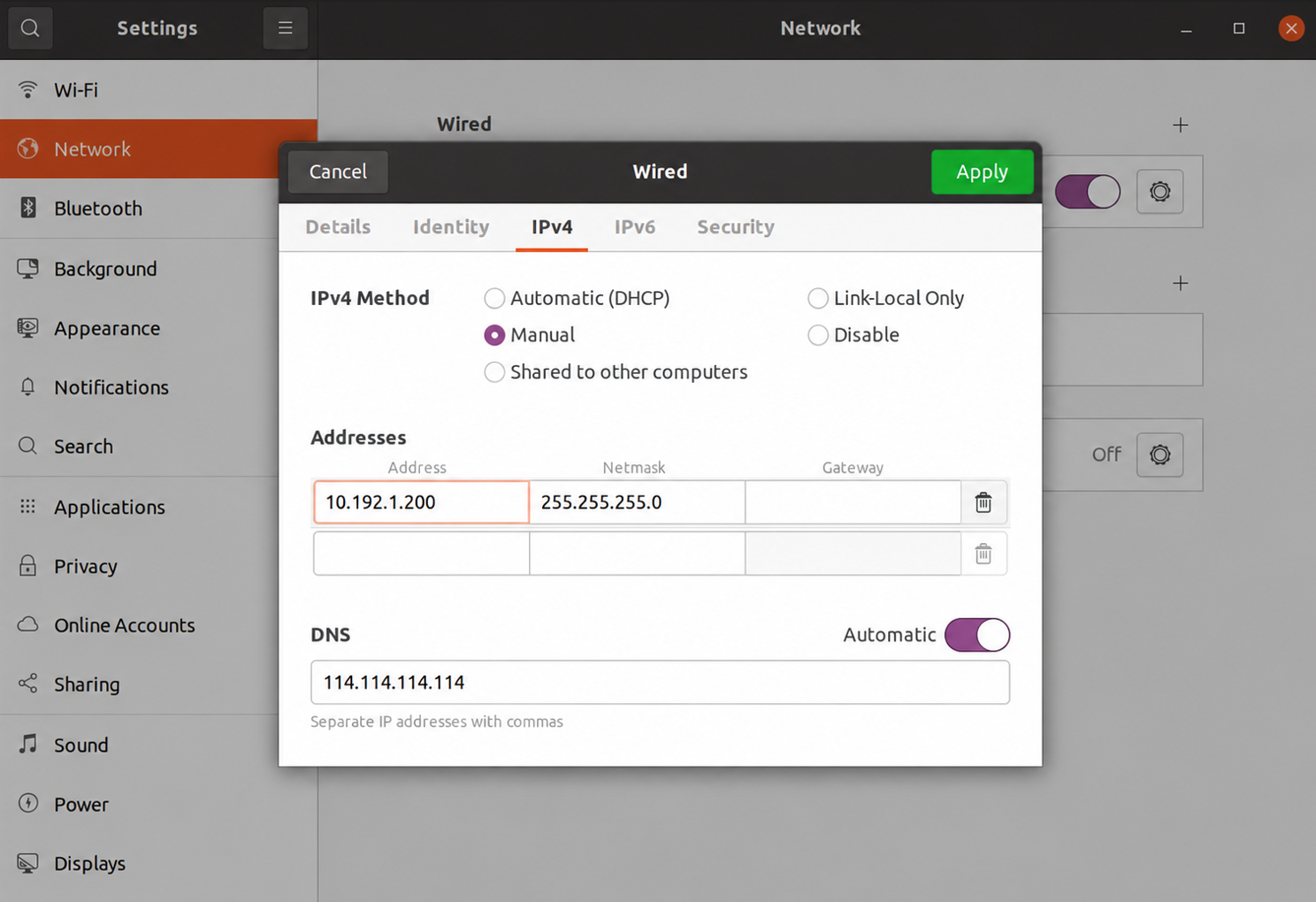
- Set the development computer's IP address. Connect the computer to the robot through the external Ethernet port. Set the computer's IP address to `10.192.1.200` and verify connectivity with `ping 10.192.1.4`. Configure the IP address as shown below:
### 5.5 Prepare for Real-Robot Deployment
- Set the development computer's IP address. Connect the computer to the robot through the external Ethernet port. Set the computer's IP address to `10.192.1.200` and verify connectivity with `ping 10.192.1.4`. Configure the IP address as shown below:
 - Enable Low-Level Development Mode. After the robot starts, press `R1 + Right` on the Remote Controller to enter `High-level Dev`. Then press `L1 + □` to enter `Idle`, followed by `R1 + Right` to enter `Low-level Dev`. The robot is now in Low-Level Development Mode, and the Status Indicator is green. In this mode, you can develop your own motion control algorithms. The mode setting persists across power cycles; the robot remains in Low-Level Development Mode after restarting.
- Run the controller on the real robot. Run the following commands in a Bash terminal. Keep the robot supported by a hoist during real-robot deployment:
```bash
# Activate the tron2_deploy Conda environment
conda activate tron2_deploy
# Specify the robot IP address and run the control algorithm
python3 tron2-rl-deploy-python/main.py 10.192.1.4
```
- Enable Low-Level Development Mode. After the robot starts, press `R1 + Right` on the Remote Controller to enter `High-level Dev`. Then press `L1 + □` to enter `Idle`, followed by `R1 + Right` to enter `Low-level Dev`. The robot is now in Low-Level Development Mode, and the Status Indicator is green. In this mode, you can develop your own motion control algorithms. The mode setting persists across power cycles; the robot remains in Low-Level Development Mode after restarting.
- Run the controller on the real robot. Run the following commands in a Bash terminal. Keep the robot supported by a hoist during real-robot deployment:
```bash
# Activate the tron2_deploy Conda environment
conda activate tron2_deploy
# Specify the robot IP address and run the control algorithm
python3 tron2-rl-deploy-python/main.py 10.192.1.4
```
- Press `L1 + △` on the Remote Controller to enable walking. Use the Left Joystick to move forward or backward and turn left or right. Use the Right Joystick to move sideways to the left or right. - Press `L1 + □` on the Remote Controller to disable walking. ### 5.6 Deploy on the Robot After completing simulation and real-robot debugging, you can deploy the algorithm on the robot. For safety, keep the robot supported by a hoist until deployment testing is complete. Follow the steps below. - Preparation - Keep the robot in Developer Mode so you can deploy and debug the program. - Network connection: Connect the development computer to the robot through the external Ethernet port. Make sure the connection is stable and communication is working. The connection is no longer required after deployment. - Copy the algorithm to the robot. - On the development computer, open a terminal and enter the workspace containing the algorithm, such as `~/limx_ws`. - Use `scp` to copy the algorithm directory to the robot. The default username is `guest`, and the password is `123456`. ```bash cd ~/limx_ws scp -r tron2-rl-deploy-python guest@10.192.1.4:/home/guest ``` - Install the Low-Level Motion-Control SDK, if it is not already installed: ```bash ssh guest@10.192.1.4 "pip install /home/guest/tron2-rl-deploy-python/limxsdk-lowlevel/python3/amd64/limxsdk-*-py3-none-any.whl" ``` - Start the program. Run the following commands in a Bash terminal. Keep the robot supported by a hoist during real-robot deployment: ```bash # Activate the tron2_deploy Conda environment conda activate tron2_deploy # Specify the robot IP address and run the control algorithm python3 tron2-rl-deploy-python/main.py 10.192.1.2 ```WARNING
- When the motion controller starts, the robot automatically enters the
preparestate. All joints move to their default zero positions, placing the robot in an upright posture. Before starting the program, suspend the robot from a hoist and keep everyone clear of the robot.- Before enabling walking, make sure the robot remains supported by the hoist and its feet or wheels are in contact with the ground.
- Configure automatic startup (optional). - Connect to the robot over SSH. The password is `123456`. ```bash ssh guest@10.192.1.4 ``` The automatic startup script is still being prepared. For now, start the controller manually. An OTA update for the startup script is planned shortly (6.17): ```text python3 /home/guest/tron2-rl-deploy-python/main.py 10.192.1.2 ```WARNING
- When the motion controller starts, the robot automatically enters the
preparestate. All joints move to their default zero positions, placing the robot in an upright posture. Before starting the program, suspend the robot from a hoist and keep everyone clear of the robot.- Before enabling walking, make sure the robot remains supported by the hoist and its feet or wheels are in contact with the ground.
- Control the robot. After the system starts, use the Remote Controller to control the robot: - L1 + △: Enable walking. - L1 + □: Disable walking. - Left Joystick: Move forward or backward and turn left or right. - Right Joystick: Move sideways to the left or right.Edit the startup script:
- Open
/home/guest/autolaunch/autolaunch.shfor editing:busybox vi /home/guest/autolaunch/autolaunch.sh- Find the command that starts
main.py. Make surepython3 /home/guest/tron2-rl-deploy-python/main.py 10.192.1.4is not commented out with#. Save your changes and exit the editor.#!/bin/bash while true; do # Start the Python controller script for the Pointfoot robot # The argument 10.192.1.4 specifies the robot IP address # If this line is commented out, uncomment it to enable automatic controller startup # Update this path to match the actual location of your controller script python3 /home/guest/tron2-rl-deploy-python/main.py 10.192.1.4 # Use roslaunch to start the robot control algorithm # Uncomment the following lines to start the robot control algorithm # Update the paths to match your installation # source /home/guest/install/setup.bash # roslaunch robot_hw pointfoot_hw.launch # Wait 3 seconds before restarting sleep 3 done- Restart the robot computer. After editing the script, run the following command:
reboot